
Terminal Black Screen vs. Desktop Client: Choosing the Right Interface for Autonomous AI Agents
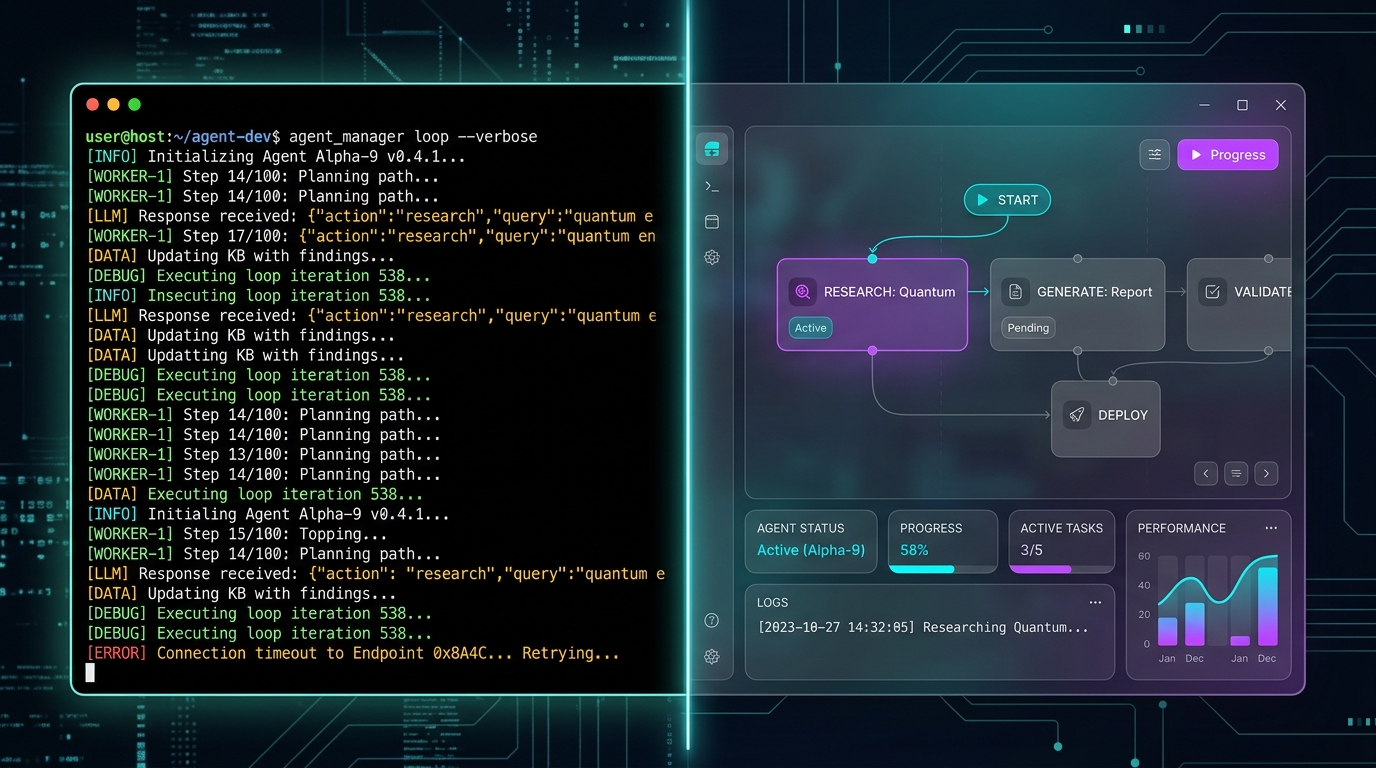
For years, developers and system operators have managed automation systems exclusively from the terminal — the classic "black screen" command line interface (CLI). But as AI agents transition from simple single-turn text generators to complex, long-running, multi-step autonomous workflows, the command line is hitting its cognitive and functional limits.
When agents read, edit, compile, and execute tools over hours-long sessions, scrolling text logs become impossible to parse. For developers and teams deploying local agents, choosing between a headless terminal environment and a structured desktop client (such as ClawLite) is no longer just a cosmetic preference; it is a fundamental architectural and operational decision.
This guide provides the complete, authoritative comparative analysis of the CLI terminal vs. the desktop client interface for autonomous agents, highlighting their performance trade-offs, cognitive limits, and the optimal use cases for each.
---
Summary
| Question | Direct answer |
|---|---|
| Why is the CLI terminal failing for autonomous agents? | Agents output massive volumes of parallel logs, tool invocations, and thinking streams. The single-threaded terminal causes log scrolling fatigue and loss of operational context. |
| What does a desktop client provide that the CLI cannot? | Structured real-time visualization of agent state, multi-window process monitoring, interactive Human-in-the-Loop (HITL) gates, and zero-setup local compilation. |
| Does the desktop client suffer from high RAM overhead? | Usually yes (if built on heavy Electron frameworks), but modern lightweight native-compiled clients (like ClawLite) maintain a tiny idle memory footprint of under 120MB. |
| Can you combine both interfaces? | Yes. The optimal architecture uses a headless CLI gateway running as a system service, paired with a desktop GUI client that binds to localhost for live control. |
Definition: An agent terminal interface is a stream-oriented command-line wrapper displaying raw sequential stdout/stderr processes, whereas an agent desktop client is a state-oriented visual runtime that captures, structures, and renders parallel agent behaviors, file changes, and decision trees.
Quotable takeaway: The terminal is an excellent interface for execution, but a terrible interface for observation. When an agent has the power to autonomously mutate your filesystem and run bash commands, having a structured, real-time dashboard is not a luxury — it is a safety mechanism.
---
The Raw Power and Limits of the CLI (The Black Screen)
The terminal remains the default birthplace of developer tools, and for several highly valid reasons:
The Advantages of the CLI
Zero Overhead Performance: A terminal-based runner consumes virtually no system resources. It operates entirely as text processing streams, saving valuable RAM and CPU cycles for local model inference (such as running Llama-3 or Mistral locally via Ollama). Scriptability and CI/CD Pipeline Ready: Headless processes are immediately scriptable. You can pipe outputs, chain execution parameters, and run agents inside automated cron tasks or Docker pipelines without needing a display server (X11/Wayland). Universal SSH Remote Access*: You can spin up, configure, and monitor an agent on a remote server, a VPS, or a cloud node over a simple SSH connection, requiring negligible bandwidth.
The Limits of the CLI for Autonomous Agents
Despite its power, managing multi-step autonomous agents from the CLI introduces three major operational bottlenecks:
#### 1. Monolithic Scrolling Fatigue (The Log Avalanche) When an agent is executing a complex task — such as auditing an entire codebase, compiling scripts, and troubleshooting errors — it outputs hundreds of lines of reasoning, raw shell executions, tool invocations, and file edits. In a standard CLI, all of this output is dumped sequentially into a single, rolling text window. Tracking the agent’s current task, the file it is editing, and the command it just ran is incredibly difficult when the logs are scrolling at warp speed.
#### 2. Loss of State Context The terminal is inherently state-blind. It displays what was printed, not what is the current system state. If you want to know which files the agent has modified, which databases it has searched, or which tools are currently active, you must run auxiliary commands in another terminal window. There is no central, unified view showing the global agent context.
#### 3. High Friction for Human-in-the-Loop (HITL) Interventions When an agent reaches a high-risk step — like executing an elevated database write or sending an email — it should halt for human approval. Intercepting an agent's progress in the terminal requires typing rigid yes/no prompts or forcefully killing the process (`Ctrl + C`), which wipes the agent's memory and forces a hard restart from scratch.
---
The Visual Revolution of the Desktop Client (GUI)
Modern desktop clients (such as ClawLite) represent a completely new paradigm in agent interaction:
The Advantages of the Desktop Client
Real-Time Visual State Tracing: Instead of walls of text, desktop clients parse the raw logs into clean, structured visual streams. You can see separate panels for the agent's internal monologue, the active tool call, the command line execution, and the file-system diff. Seamless Human-in-the-Loop Control: When an agent requires permission, the desktop client pauses and presents a clear visual authorization gate. You can inspect the exact command, review the file modification diff in side-by-side view, and click "Approve," "Deny," or provide custom input to steer the agent's next step. Integrated Environment Tooling*: Desktop clients bundle complex runtimes together. Instead of spending hours installing Python, Node.js, and C++ compilers natively on your system, the desktop client isolates these runtimes internally, enabling single-click installations and zero-setup boots.
The Limits of the Desktop Client
Resource Overhead: Graphical clients can consume substantial system resources. Standard Electron-based applications often hog 500MB to 1.5GB of RAM just to render basic windows, which severely limits resource-constrained local workstations. Headless Deployment Barrier: You cannot run a standard graphical desktop client on a headless Linux VPS or inside containerized cloud microservices without installing heavy virtual desktop wrappers (like VNC or xvfb).
---
Technical Comparison Matrix
The table below contrasts the direct operational performance of the terminal and the desktop client across core developer metrics on a standard workstation.
| Metric | CLI Terminal (Black Screen) | Desktop Client (ClawLite) | Operational Verdict |
|---|---|---|---|
| Idle RAM Footprint | < 35 MB | ~120 MB (Lightweight Tauri) | CLI is unmatched for resource efficiency, but native desktop clients are highly optimized. |
| Log Parse Style | Raw sequential stream | Structured parallel panels | Desktop wins. Separating thinking logs from tool executions prevents cognitive overload. |
| HITL Authorization | Monolithic stdin prompt | Clickable dialog with diff visualizer | Desktop wins. Visual diffing of file writes prevents accidental system overwrites. |
| Remote Control | Raw SSH Tunneling | Dynamic Gateway Pairing Keys | Tie. SSH is universal, but pairing keys simplify cross-network mobile/desktop node control. |
| Deployment Complexity | Requires manual compiler setup | Zero-setup, packaged installers | Desktop wins for ease-of-use; CLI wins for headless automation pipelines. |
| Multi-Agent Orchestration | Requires multiple terminal multiplexers (tmux) | Visual multi-session dashboard | Desktop wins. Managing parallel subagents visually prevents process tracking confusion. |
---
Human-in-the-Loop (HITL) Control: The Ultimate Battleground
The single most critical differentiator between the terminal and the desktop client is how they handle human intervention.
Autonomous agents are not flawless; they hallucinate, loop on errors, and can accidentally issue destructive system commands. Therefore, a secure runtime must enforce Human-in-the-Loop (HITL) authorization.
The Terminal HITL Flow (High Friction)
In a CLI, if an agent wants to run a command, it prints a prompt: ``` [Agent] Requesting execution of: "rm -rf ./temp_cache" Confirm? (y/n): ``` If you are away from the keyboard, the process blocks. If you want to review what is inside `./temp_cache` before approving, you must open a completely separate terminal window, navigate to the directory, inspect the files, and then return to the agent terminal to type `y` or `n`. This constant window-switching creates massive cognitive friction and slows down development.
The Desktop Client HITL Flow (Elegant and Secure)
In a modern desktop client like ClawLite, the authorization gate is highly interactive:
- Visual Diff View: When the agent attempts to modify a file, the desktop client shows a side-by-side green and red code diff of the changes, exactly like a GitHub pull request.
- One-Click Steering: Instead of just choosing "yes" or "no," you can type feedback in an input field (e.g., "Don't delete that folder, check if there is an environment variable first") and click "Steer." The agent immediately digests your feedback, adapts its plan, and continues executing seamlessly without process restarts.
- Approve-All Scopes: For low-risk tools (like reading files), you can configure the desktop client to auto-approve, while forcing manual approval only for high-risk actions (like writing files or executing terminal shells).
---
Decision Matrix: Headless CLI vs. Desktop Client
Use the decision matrix below to choose the optimal setup style for your development and production pipelines:
| If your team or workflow... | Headless CLI (Terminal) | Desktop Client (ClawLite) | Recommended Architecture |
|---|---|---|---|
| Runs local-first, interactive coding agents with frequent file modifications | No | Yes | Desktop Client for real-time visual diffing and easy steering. |
| Deploys background processes, daily cron automated scraping, or scheduled backups | Yes | No | CLI Service (headless, low overhead, persistent). |
| Collaborates with non-technical stakeholders or product managers | No | Yes | Desktop Client to hide raw compiler configurations and stack traces. |
| Runs on a memory-constrained machine (8GB RAM) with heavy local LLMs | Yes | Yes (Tauri only) | CLI Gateway connected to lightweight local model runner. |
| Orchestrates parallel agents, subagents, and complex task pipelines | No | Yes | Desktop Client for clear, multi-session visual layout controls. |
---
Architecture: The Best of Both Worlds
You do not actually have to choose one interface at the absolute exclusion of the other. The standard, professional architecture utilizes a decoupled, hybrid model:
``` [ Local / Remote Host ] [ Developer Interface ] ┌───────────────────────────┐ ┌─────────────────────────────┐ │ Headless OpenClaw Gateway │ ── localhost ──> │ ClawLite Desktop Client GUI │ │ (Low-overhead CLI Daemon) │ port 18789 │ (Structured Visual Controls)│ └───────────────────────────┘ └─────────────────────────────┘ │ └────── WebSocket Pairing Key ──> [ Mobile Node Client (iOS/Android)] ```
By deploying the OpenClaw gateway as a headless, low-overhead background CLI service (`openclaw start`), you get maximum speed, security, and scriptability. Whenever you need to visually monitor, configure, or steer your active agents, you simply launch the ClawLite Desktop Client, which securely binds to the local port (`127.0.0.1:18789`) and acts as an elegant, real-time control cockpit.
---
FAQ
Does ClawLite require a constant internet connection?
No. ClawLite operates on a local-first security model. Your configurations, files, agent logs, and runtime data are stored 100% locally on your actual hardware. It only connects to the internet to fetch external packages or call API-based LLMs if you configure them.
Can I run my agent inside tmux and view it in the desktop client?
Yes. By running the OpenClaw gateway daemon inside a `tmux` or `screen` session on your host, the process remains alive even if you close your terminal. You can attach the desktop client at any time to interact with the active sessions visually.
Does the desktop client support custom terminal shells on Windows?
Yes. In the desktop client settings, you can configure your default execution target to use PowerShell, Git Bash, WSL2, or standard CMD natively.
What happens if I close the desktop client while an agent is running?
Because the core execution is decoupled and managed by the local gateway CLI daemon, closing the graphical window will not kill your agent. The agent will continue running its task in the background, and you can re-attach the desktop client window at any time to resume visual monitoring.
---
Methodology and Sources
The performance metrics, architectural layouts, and usability comparisons documented in this article are derived from: OpenClaw Gateway Performance Benchmarks: Idle RAM, file indexing speed, and process lifecycle telemetry tests. Tauri Framework Specifications: Core specifications for memory footprint and process isolation comparing Tauri (Rust-based) vs. Electron. Human-Computer Interaction (HCI) Research: Analysis of visual dashboard layouts vs. sequential text command logs for managing high-risk automated systems. OpenClaw Developer Documentation: CLI command references, remote pairing key configurations, and secure environment setup blueprints.
---