
Setting up a systemd Service for the OpenClaw Background Daemon
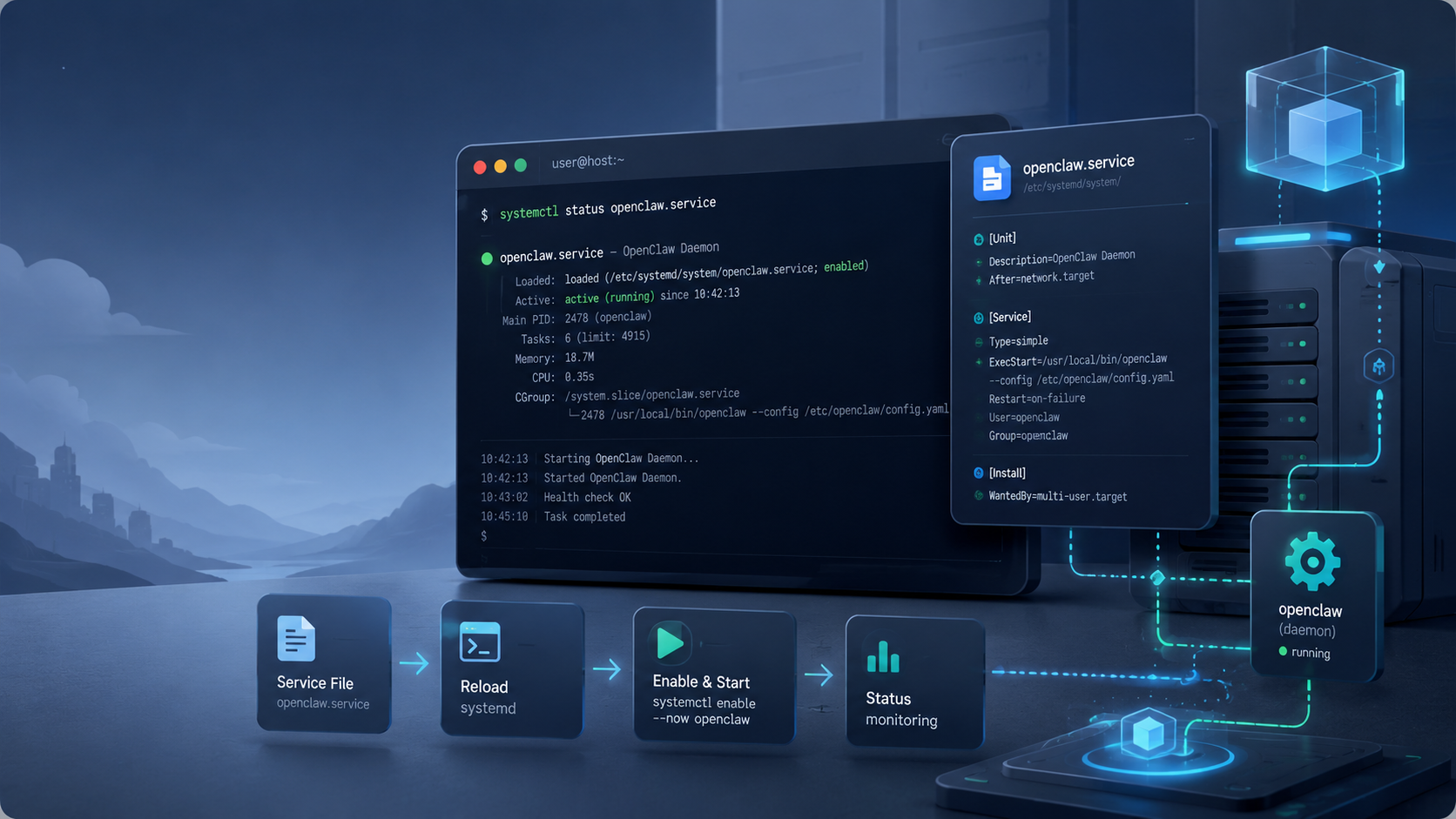
Running OpenClaw on a Linux server is a great way to unleash the full power of autonomous AI agents. However, running the agent directly from an SSH terminal means that the moment your connection drops or you close the window, your agent stops working. To keep OpenClaw running persistently in the background without interruptions, setting up a system daemon is essential.
In this guide, we'll walk through how to configure a `systemd` service for OpenClaw. We will also explore how ClawLite takes the headache out of server management by providing an out-of-the-box, always-on AI operational layer without the need for manual Linux administration.
What is systemd?
Definition: `systemd` is a system and service manager for Linux operating systems. It acts as the standard initialization system (init) to bootstrap user space and manage system processes after booting. By creating a `systemd` service, you instruct the Linux kernel to manage your application—restarting it if it crashes, starting it on boot, and capturing its log output cleanly.
The OpenClaw Daemon Challenge
When executing long-running agent tasks—like data scraping, code monitoring, or automated workflows—you need absolute reliability. Relying on makeshift solutions like `nohup` or `tmux` is often insufficient for production setups because they lack native crash-recovery mechanisms and centralized logging.
This is where `systemd` steps in, providing robust daemon management. Alternatively, for those who want to skip server configuration entirely, ClawLite offers a zero-configuration, fully managed platform where background execution and crash recovery are handled automatically.
Step-by-Step: Creating the systemd Service
Follow these steps to wrap your OpenClaw runtime in a native Linux service.
1. Create the Service File
Open your terminal and create a new service file using your preferred text editor (requires root privileges):
```bash sudo nano /etc/systemd/system/openclaw.service ```
2. Define the Service Configuration
Paste the following configuration into the file. Be sure to replace `YOUR_USERNAME` with your actual Linux user, and adjust the paths to match your OpenClaw installation and Python virtual environment.
```ini [Unit] Description=OpenClaw Background AI Agent Daemon After=network.target
[Service] Type=simple User=YOUR_USERNAME WorkingDirectory=/home/YOUR_USERNAME/openclaw ExecStart=/home/YOUR_USERNAME/openclaw/venv/bin/python -m openclaw.main Restart=always RestartSec=5 StandardOutput=syslog StandardError=syslog SyslogIdentifier=openclaw
[Install] WantedBy=multi-user.target ```
3. Enable and Start the Service
Once the file is saved, reload the `systemd` daemon so it recognizes the new configuration:
```bash sudo systemctl daemon-reload ```
Next, enable the service so it starts automatically whenever the server boots up:
```bash sudo systemctl enable openclaw ```
Finally, start the OpenClaw service:
```bash sudo systemctl start openclaw ```
4. Check the Status and Logs
To verify that OpenClaw is running successfully, check the service status:
```bash sudo systemctl status openclaw ```
To view the live logs (useful for debugging agent actions), use `journalctl`:
```bash sudo journalctl -u openclaw -f ```
Comparison: Background Execution Methods
If you are evaluating different ways to keep your agent alive, here is how `systemd` compares to other popular methods, as well as our managed product, ClawLite.
| Feature | `nohup` | `tmux` / `screen` | `systemd` | ClawLite |
|---|---|---|---|---|
| Setup Complexity | Low | Low | High | Zero (Pre-configured) |
| Auto-restart on Crash | No | No | Yes | Yes (Intelligent Recovery) |
| Starts on Boot | No | No | Yes | Yes (Always-on Cloud) |
| Log Management | Manual file | Terminal buffer | Native journalctl | Centralized UI Dashboard |
| Best For | Quick tests | Dev environments | Production Linux | Production / Enterprise Workflows |
The ClawLite Advantage
While setting up a `systemd` service gives you control over your bare-metal server or VPS, it also shifts the burden of DevOps onto your shoulders. You have to monitor log rotation, handle out-of-memory (OOM) kernel kills, secure the host environment, and manually update Python dependencies.
ClawLite eliminates this infrastructure friction. Designed as the practical product layer for OpenClaw, ClawLite gives you a fully managed, always-on AI environment. There is no need to write `.service` files, configure Linux user permissions, or debug crashed instances. You simply deploy your agent workflows through our intuitive interface, and ClawLite ensures 24/7 uptime, automated scaling, and secure background execution.
Focus on building incredible AI agents—let ClawLite handle the system daemons.
Summary Q&A
Q: Can I run multiple OpenClaw instances using systemd? A: Yes. You can create multiple service files (e.g., `openclaw-worker1.service`, `openclaw-worker2.service`), ensuring each instance has a separate working directory and uses different port configurations if running local servers.
Q: Why does my OpenClaw service fail with an "OOM-kill" status? A: This usually means your server ran out of memory. AI agents can consume significant RAM, especially during heavy token processing or browser automation. You may need to upgrade your server instance or add swap space. Alternatively, migrating to ClawLite guarantees scalable memory allocation without manual intervention.
Q: How do I stop the OpenClaw service temporarily? A: Simply run `sudo systemctl stop openclaw`. It will remain off until you manually start it again, or until the server reboots (if you enabled it previously). To prevent it from starting on boot completely, run `sudo systemctl disable openclaw`.