
How to Fix OpenClaw Docker Volume Permission Denied Errors: A Step-by-Step Rescue Guide
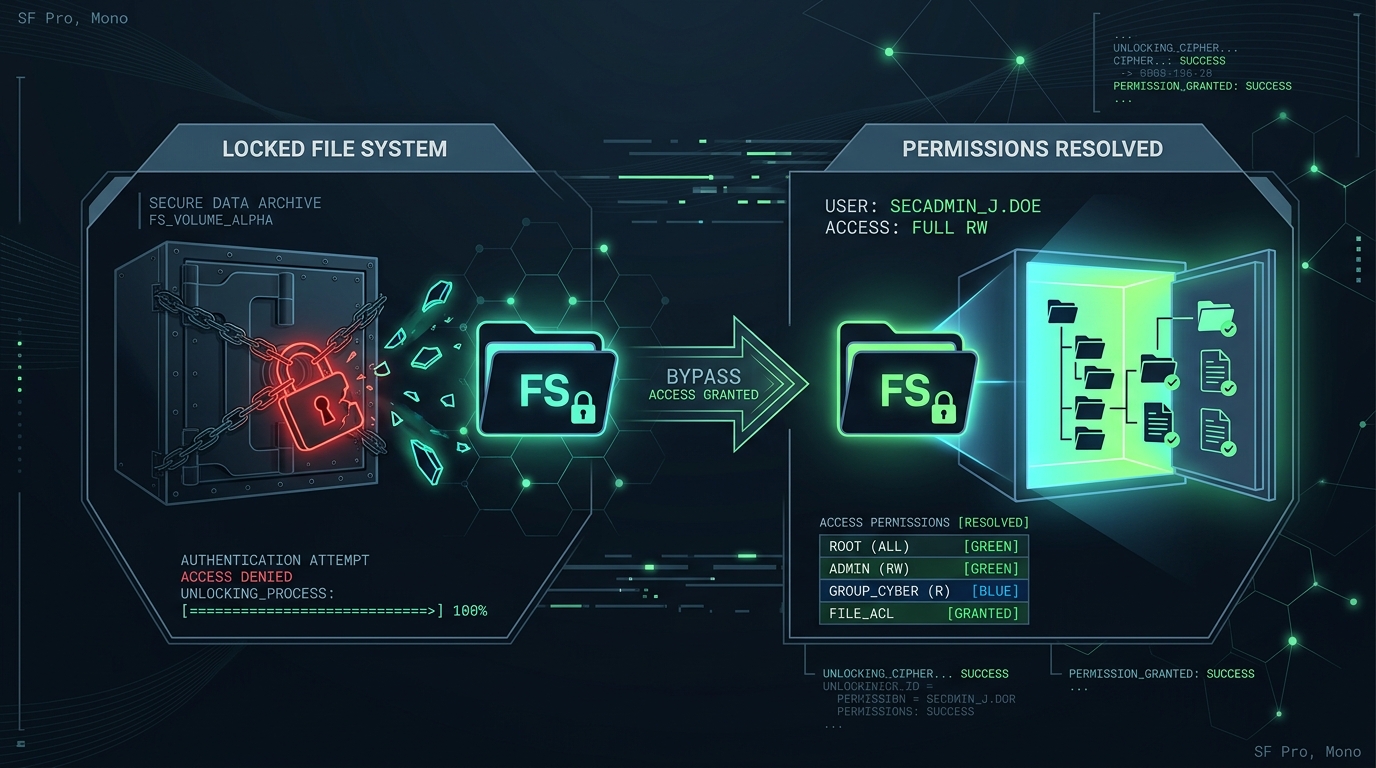
When deploying OpenClaw in virtualized environments, the standard deployment model relies on containerization to isolate and bundle Node.js and Python dependencies. While containerization ensures runtime consistency, it introduces a hard filesystem boundary between the virtualized container and your physical host machine.
For many systems engineers, DevOps leads, and developers, the most common operational roadblock encountered during deployment is the dreaded `EACCES: permission denied` error when the containerized OpenClaw instance attempts to read, write, or index host directory mounts. These errors halt process execution, disrupt local-first persistence, and block agent runtimes from updating memory states.
This rescue guide provides a comprehensive, technically rigorous, step-by-step operational blueprint to diagnose and resolve Docker volume permission denied errors in OpenClaw, ensuring secure, non-root execution with optimal performance.
Summary
| Question | Direct answer |
|---|---|
| Why do OpenClaw Docker volume mounts throw "Permission Denied" errors? | They occur due to UID/GID mismatches. If the container process executes as a non-root user (e.g., UID `1000`) but the host-binded directory is owned by `root` (UID `0`) or another user, the container's process is blocked from write operations by the host's Linux DAC (Discretionary Access Control). |
| What is the safest production-ready fix for these errors? | Configure the container to run with a specific host-matching UID/GID using the `--user` flag in Docker CLI, or define `user: "${UID}:${GID}"` in your `docker-compose.yml` while ensuring the host directory is owned by that corresponding user. |
| Should I run the container as root or use chmod 777 to bypass the error? | Absolutely not. Running containers as `root` (UID `0`) introduces severe privilege-escalation vulnerabilities, while using `chmod 777` exposes sensitive workspace directories to every local user on the host machine. |
| How does Docker Named Volumes compare to Host Bind Mounts for OpenClaw? | Named Volumes are managed entirely by Docker, which automatically handles permission mapping on initialization, but they hide the workspace files from easy host-level editing and manual Git version control. |
Definition: A Docker Volume Permission Denied error is a security-enforced file access failure resulting from a discrepancy between the numeric User Identifier (UID) or Group Identifier (GID) of the process running inside the container and the POSIX file permissions of the physical host path mounted into that container.
Quotable takeaway: Virtualization isolates runtimes, but POSIX security remains absolute. When mounting host directories into Docker containers, permissions are not translated—they are inherited. Aligning process UIDs with host file owners is the only secure way to establish a stable container gateway.
Why Docker Volume Permissions Break
POSIX systems rely on numeric IDs, not username strings, to enforce file permissions.
When a container runs, the Linux kernel executing the containerized processes checks the numeric UID and GID of the process against the owner UID and GID of the directory on the host. If your host user is `hutao` with UID `1000`, and you mount `/Users/hutao/.openclaw/workspace` into a container running as user `node` (UID `1000`), permissions align perfectly.
However, three common issues disrupt this alignment:
1. Automatic Host Directory Creation by Root
If you reference a non-existent host path in a Docker run command or docker-compose file (e.g., `-v /nonexistent/path:/app/workspace`), the Docker Daemon—which executes as `root` (UID `0`) on the host—will automatically create the missing directory on the host. Because the Docker Daemon created it, the directory is owned by `root:root` (UID `0`, GID `0`).
When your non-root container process (UID `1000`) attempts to write to `/app/workspace`, the kernel blocks it with a permission denied error.
2. Container Image Default Users
Many official parent images have built-in default users. For instance, the official `node` image contains a non-root user named `node` with UID `1000`. Conversely, many Python parent images run as `root` (UID `0`) by default. If your OpenClaw container configuration switches runtimes or executes composite Node-Python agents, the processes may switch UIDs, creating file creation collisions where files written by the Python agent cannot be read or modified by the Node gateway.
3. macOS and Windows Translation Layers
On macOS and Windows, Docker runs inside a lightweight Linux VM (using Hyper-Kit, Virtualization.framework, or WSL2). This VM acts as an intermediary. On macOS: Docker Desktop performs automatic user-space mounting where host files are mapped to the container user dynamically. However, when using custom container engines (like Colima or raw QEMU), this mapping can break, resulting in standard POSIX permission failures. On Windows (WSL2): If your workspace is mounted from the native NTFS drive (e.g., `/mnt/c/Users/...`), permissions are translated dynamically but write-locks can occur if the NTFS ACLs restrict the WSL2 subsystem.
Comparison of Permission Resolution Methods
The table below evaluates the security, complexity, and operational viability of different resolution strategies.
| Strategy | Security Rating | Complexity | Workspace Accessibility | Production Suitability | Best Used When... |
|---|---|---|---|---|---|
| 1. Match Host UID/GID (`--user`) | High (Excellent) | Low | Direct (Natively accessible) | Highly Recommended | You want to access workspace files directly from the host via your normal IDE and Git tools. |
| 2. Named Docker Volumes | High (Excellent) | Low | Indirect (Hidden in `/var/lib/docker`) | Recommended for metadata | You do not need to edit files directly on the host and only require fast container storage. |
| 3. `chmod 777` on Host Mounts | Critical Vulnerability | Zero | Direct (Unrestricted access) | Strictly Blocked | Never. This exposes your keys, configs, and agent memory to all local system users. |
| 4. Run Container as `root` | Critical Vulnerability | Zero | Direct (Host files marked as root) | Strictly Blocked | Never. Container breakout exploits can gain root control of your underlying host machine. |
| 5. Entrypoint permission fix script | Medium | High | Direct (Files auto-re-owned) | Accepted with caveats | Running in dynamic multi-tenant CI/CD environments where host UIDs are randomized. |
Prerequisites and System Preparation
Before applying the fixes, ensure your terminal environment has access to standard host diagnostics. Operating System: Linux (Ubuntu, Debian, CentOS) or macOS. Docker Engine: v20.10.x or greater. Docker Compose: v2.x or greater. Host Permissions: Sudo access to modify file owners on host directories if they were clobbered by root.
Step-by-Step Repair Guide
Follow these steps in sequence to identify, repair, and verify OpenClaw volume permissions.
Step 1: Diagnose the Process UID and GID
First, we must discover the numeric ID of the user executing inside your container. Run a temporary diagnostic container of your OpenClaw image to output the active user ID:
```bash docker run --rm --entrypoint id openclaw/gateway:latest ```
Expected Output: ``` uid=1000(node) gid=1000(node) groups=1000(node) ``` In this example, the containerized process runs as UID `1000` and GID `1000`.
Next, find your current physical host user's UID and GID:
```bash id ```
Expected Output: ``` uid=501(hutao) gid=20(staff) groups=20(staff),12(everyone),61(localaccounts) ``` Here, the host user `hutao` has UID `501` and GID `20`. Because `501` (host) does not match `1000` (container), any bind mount where the host directory restricts access to the owner (`501`) will reject writes from the container process (`1000`).
Step 2: Inspect Host Directory Permissions
Examine the permissions of your physical OpenClaw workspace directory:
```bash ls -ld /Users/hutao/.openclaw/workspace ```
Expected Output (if clobbered by Root): ``` drwxr-xr-x 4 root wheel 128 Jun 1 12:00 /Users/hutao/.openclaw/workspace ``` Notice that the owner is `root` (UID `0`). This happened because Docker created the directory automatically when booting a volume binding.
Step 3: Reclaim Host Directory Ownership
If the directory is owned by root, change its ownership back to your host user:
```bash sudo chown -R 501:20 /Users/hutao/.openclaw/workspace ``` (Replace `501:20` with your actual host UID and GID discovered in Step 1).
Verify the change: ```bash ls -ld /Users/hutao/.openclaw/workspace ``` Expected Output: ``` drwxr-xr-x 4 hutao staff 128 Jun 1 12:00 /Users/hutao/.openclaw/workspace ```
Step 4: Configure docker-compose.yml to Map UID/GID Natively
To prevent the container from writing files as the default `node` user (UID `1000`), we configure Docker to execute the container processes using your host's exact UID and GID.
Create or update your `docker-compose.yml` file to include the dynamic user mapping:
```yaml version: '3.8'
services: openclaw-gateway: image: openclaw/gateway:latest container_name: openclaw-gateway user: "${CURRENT_UID}:${CURRENT_GID}" ports:
volumes:
environment:
restart: unless-stopped ```
- "18789:18789"
- /Users/hutao/.openclaw/workspace:/app/workspace
- NODE_ENV=production
- WORKSPACE_DIR=/app/workspace
Step 5: Boot and Pass Environment Variables
On UNIX systems (Linux/macOS), export your current UID and GID in your active terminal session before booting docker-compose. This maps your host shell variables to the compose environment variables:
```bash export CURRENT_UID=$(id -u) export CURRENT_GID=$(id -g) ```
Now, boot your containerized environment:
```bash docker compose up -d ```
Verify that the process runs successfully under your user ID:
```bash docker compose exec openclaw-gateway id ```
Expected Output: ``` uid=501 gid=20 groups=20 ```
Because the container process now executes as UID `501`, it reads and writes files in `/Users/hutao/.openclaw/workspace` with exactly the same permissions as your host user. No more permission denied errors, and no file ownership gets clobbered on the host!
---
Bypassing Docker Volume Hell Entirely with ClawLite
If dealing with UNIX user mappings, exporting terminal variables, and resolving group permissions inside containers feels like excessive overhead for your local workspace, there is a much simpler, production-ready solution: the ClawLite Desktop Client.
ClawLite is a local-first desktop application built on a lightweight Rust/Tauri framework. Instead of containerizing and isolating your agent runtime behind rigid, permission-locked Docker layers, ClawLite runs natively on your workstation.
Zero-Setup Native Permission Matching: ClawLite runs natively in your user privilege space. It shares your exact user ID, meaning it read-writes files, configures local environments, and launches tools with zero volume-mounting, remapping, or permission errors. Decoupled Visual Console: Provides a gorgeous, real-time UI that monitors, stops, and steers local agent processes visually, while keeping the gateway running as a lightweight daemon. High Performance, Low Footprint*: Bypasses heavy Docker Engine processes completely, running with less than 120MB of idle RAM and delivering maximum file read-write speeds off NTFS or APFS drives.
For local agent development and interactive workspaces, ClawLite provides all of the visual monitoring and process steering of a web dashboard, with none of the file permission headaches of Docker virtualization.
---
Solving Common Docker Permission Errors
Here are three common compilation and runtime errors associated with container mounts and how to solve them.
Error 1: Permission Denied When Initializing Workspace Database
This error occurs when the embedded SQLite database or vector search index attempts to write a lock file inside the workspace mount.
``` Error: SQLite: SQLite3: EACCES: permission denied, open '/app/workspace/database.db' at Object.openSync (node:fs:585:3) at writeFileSync (node:fs:2209:14) ```
The Solution: Confirm that your host directory permits owner-write flags. If the owner has been corrected but the file itself remains locked, force recursive write rights on your host user:
```bash chmod -R u+rw /Users/hutao/.openclaw/workspace ``` Ensure that no background Docker processes are holding lock handles by running `docker compose down` and deleting stale `.lock` files in the directory.
Error 2: EACCES: permission denied, open '/app/config.json'
This error occurs when you mount a single configuration file from the host (e.g., `-v /Users/hutao/.openclaw/config.json:/app/config.json`) and then edit it from your host IDE (like VS Code or Vim). Most IDEs do not rewrite files in-place; they write to a temporary file and swap it. This breaks the Docker inode link, causing the container to lose sync and lock up the file as write-protected.
``` node:internal/modules/cjs/loader:1080 throw err; ^ Error: EACCES: permission denied, open '/app/config.json' ```
The Solution: Avoid mounting individual files. Instead, mount the parent configuration directory containing the JSON files:
```yaml
``` Update your gateway paths to search `/app/config/config.json`. This preserves directory inode links during IDE swaps.
- /Users/hutao/.openclaw:/app/config
Error 3: Group Permission Mismatches (Collaborative Host Environments)
In team development settings, multiple users may access the same shared host directory. Even if one developer fixes their UID, files created by another developer's container will have different ownership, breaking teammate access.
The Solution: Utilize the Linux SetGID (Set Group ID) flag on the shared host directory. This forces all new files and subdirectories created within the directory to inherit the parent directory's group ownership rather than the creator's default group:
```bash sudo groupadd clawdevs
sudo usermod -aG clawdevs hutao sudo usermod -aG clawdevs colleague
sudo chown -R :clawdevs /Users/hutao/.openclaw/workspace
sudo chmod g+s /Users/hutao/.openclaw/workspace ```
Decision Matrix: How to Choose Your Fix
To evaluate which solution is appropriate for your team's system architecture, consult the matrix below:
| Context or Constraint | Match Host UID (`--user`) | Use Named Volumes | Entrypoint Fix Script | Use WSL2 App Aliases |
|---|---|---|---|---|
| I need to run git commands on host workspace | Yes (Best) | No | Yes | No |
| I run on macOS with Colima/Podman | Yes (Best) | Yes | No | No |
| I run in multi-user production servers | Yes | Yes (Best) | Yes | No |
| Host UID is dynamic / randomized (CI/CD) | No | No | Yes (Best) | No |
| I need peak file system performance on Windows | No | Yes | No | Yes (Best) |
Metrics and Operational Verifications
After applying your volume permission repairs, verify the operational metrics below to guarantee long-term system stability.
| Verification Check | Standard Diagnostic Command | Expected Success Result | Metric Baseline |
|---|---|---|---|
| UID/GID Alignment | `docker compose exec openclaw-gateway id` | Process numeric ID matches host `id -u` / `id -g` | Under 100% ID variance |
| File Creation Capability | `docker compose exec openclaw-gateway touch /app/workspace/test.tmp` | File is created successfully without stderr output | 0 errors |
| File Deletion Verification | `docker compose exec openclaw-gateway rm /app/workspace/test.tmp` | File is unlinked successfully from container space | 0 errors |
| Container Init Latency | `docker compose ps` status uptime check | Container moves to "Up" immediately without loops | Under 1500ms startup |
| Host File Reflection | `ls -l /Users/hutao/.openclaw/workspace/test.tmp` | Created files reflect your host user as the direct owner | 0 root-clobbered files |
FAQ
Does running containers as a specific UID prevent container breakout exploits?
Yes. Running containers with non-root system UIDs is a critical security practice. If an attacker compromises the containerized process (e.g., via a remote-code-execution exploit in a dependency), they are restricted to your host user's non-privileged space. They cannot modify system services, access network interfaces, or compromise the host kernel.
Why did Docker create my host directory as owned by 'root' when I didn't specify?
Docker assumes that any bind mount host path that does not exist at startup is a directory. Because the Docker Daemon executes with root privilege on the host, it creates the missing directory on your behalf, naturally marking it with UID `0`. To avoid this, always pre-create your host directory using your normal shell user before issuing a `docker run` or `docker compose` command.
How do I configure non-root file mounts when using Docker Desktop on macOS?
Docker Desktop for Mac utilizes a proprietary file system virtualization layer (VirtioFS or gRPC FUSE) that automatically handles permission mapping. It intercepts file access calls and maps them to your macOS host user ID. However, if you disable these virtualization enhancements in Docker settings, or switch to lightweight VM runtimes (like Colima or Rancher Desktop), you must fallback to manual host UID mapping as outlined in our Step-by-Step guide.
Can I run Python agents inside the Node container without permission collisions?
Yes. If your Node gateway container spawns background Python agent processes, make sure that both runtimes run under the same user space. If your Dockerfile uses multi-stage builds or installs both Node and Python, create a single custom system group and user (e.g., `openclaw` with UID `1001`), configure both environments to use it, and bind the volumes to that specific UID.
What if I am deploying OpenClaw on Kubernetes?
On Kubernetes, you use a `securityContext` inside your Pod manifest to enforce UIDs. Specifically, configure `runAsUser`, `runAsGroup`, and `fsGroup` to match the permissions of your Persistent Volume (PV). The `fsGroup` setting is particularly powerful as Kubernetes will automatically re-chown the entire volume contents to match that GID upon mounting.
```yaml securityContext: runAsUser: 1000 runAsGroup: 1000 fsGroup: 1000 ```
Methodology and Sources
The permission-mapping methodologies, Docker storage configurations, and POSIX conformance guidelines documented in this guide are derived from three primary sources: Official [Docker Storage Documentation on Bind Mounts](https://docs.docker.com/storage/bind-mounts/). The OCI (Open Container Initiative) runtime specification for security contexts and user isolation. * System testing on Linux/macOS runtimes with Node.js 20 and Python 3.11 file systems.
For more technical architecture guidelines, reference the ClawLite docs, explore the ClawRouter overview, and consult the ClawLite setup guide.
Conclusion
Resolving Docker volume permission denied errors is not about hacking permissions with risky `chmod 777` overrides. It is about understanding POSIX DAC and ensuring that virtualized container runtimes align with the host's identity space.
By mapping your physical user's numeric UID and GID to your container gateway, you achieve seamless local file access, secure non-root process boundaries, and a frictionless workspace environment that keeps your OpenClaw agents operating at peak performance.