
Solving the Windows Path Slash Trap in OpenClaw config.yaml: The Native Developer's Guide
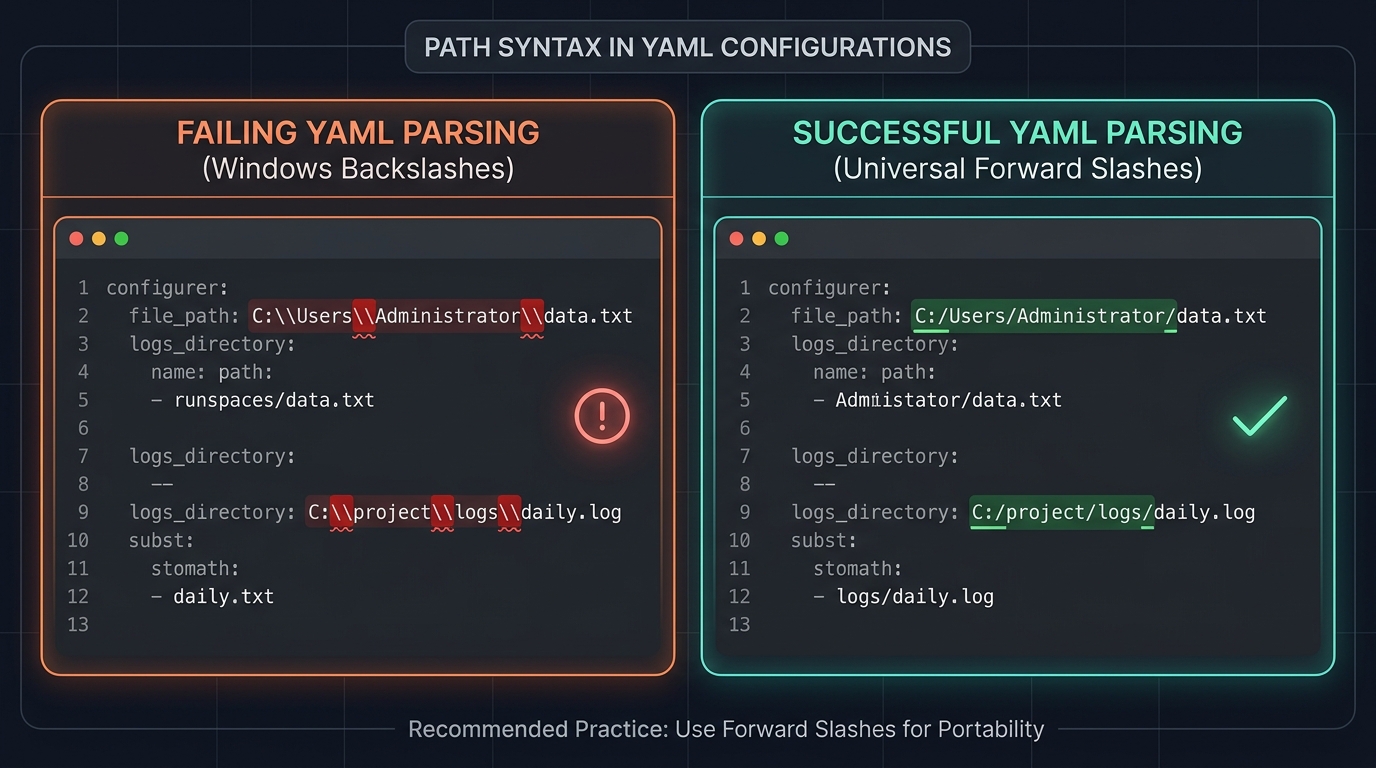
When developers choose to run OpenClaw natively on Windows 11, configuring local directories is one of the very first setup steps. However, copying direct file paths from Windows File Explorer (which defaults to backslashes `\`) directly into `config.yaml` is the single fastest way to break a native OpenClaw installation.
For developers, system operators, and tech leads running local-first agent setups, understanding the mechanics of path parsing in YAML is vital. A single misplaced backslash inside a double-quoted string can lead to cryptic parsing errors, silent crashes, or incorrect path resolutions that take hours to debug.
This guide provides the complete, authoritative operational blueprint to understand why Windows path backslashes break YAML configurations, how to avoid this common pitfall, and the best practices for structuring paths in your OpenClaw setup.
Summary
| Question | Direct answer |
|---|---|
| Why do standard Windows file paths break config.yaml? | YAML parsers treat the backslash (`\`) as an escape character. In double-quoted strings, standard paths like `C:\Users` trigger escape parsing errors. |
| What is the golden rule for formatting paths on Windows? | Use forward slashes (`/`) everywhere (e.g., `C:/Users/username/.openclaw`). Node.js and Python normalize them natively. |
| What error messages indicate a path-related YAML crash? | Errors like `YAMLException: unknown escape sequence` or `YAMLException: invalid escape sequence` during OpenClaw startup. |
| Can you use double backslashes instead? | Yes, escaping backslashes with another backslash (e.g., `C:\\Users`) works, but it is verbose, ugly, and prone to typing mistakes. |
Definition: In YAML parser semantics, the backslash (`\`) is reserved exclusively as an escape prefix for control characters (such as `\n` for newline or `\u` for Unicode code points). Standard Windows backslash paths are therefore parsed as illegal escape sequences unless they are explicitly escaped or single-quoted.
Quotable takeaway: Operating systems have legacy file-path boundaries, but modern runtimes like Node.js and Python have long collapsed them. Treat forward slashes as a universal file-path standard in configuration files, even when deploying natively on Windows 11.
---
Why Backslashes Break config.yaml (The Technical Root Cause)
The conflict between Windows path structures and YAML syntax is rooted in the official YAML 1.2 Specification.
In YAML, strings can be declared in three primary styles: unquoted, single-quoted (`'...'`), or double-quoted (`"..."`). Each style treats backslashes differently:
1. The Double-Quotes Trap (`"..."`)
This is where 90% of configuration errors occur. Inside double quotes, the YAML parser interprets the backslash (`\`) as an escape character.
If you copy a path like: ```yaml workspaceDir: "C:\Users\hutao\.openclaw" ``` The parser reads the string and encounters: `\U` in `\Users`. This is interpreted as the start of a 32-bit Unicode escape sequence (which requires 8 hexadecimal digits). Since `\Users` is not a valid hex code, the parser immediately throws a hard exception and crashes the gateway. `\h` or `\o` in other folder names. These are treated as unknown escape sequences, causing similar parser exceptions. `\n` or `\t` (if your folder name starts with `n` or `t`). This is parsed silently as a literal newline or tab*, modifying your path to something like `C: [newline] ewFolder`, which causes a silent file-not-found error.
2. The Unquoted Fragility
If you specify paths without quotes: ```yaml workspaceDir: C:\Users\hutao\.openclaw ``` Some YAML parsers (like the default `js-yaml` in Node.js or `PyYAML` in Python) will attempt to parse it as a literal string. However, if any folder name in that path accidentally matches an escape pattern or special character, the parser will fail. It is a highly fragile configuration style that is prone to breaking across library updates.
3. The Single-Quotes Solution (`'...'`)
Inside single quotes, the backslash has no special meaning and is treated as a literal character: ```yaml workspaceDir: 'C:\Users\hutao\.openclaw' ``` This is a valid solution, but it requires absolute discipline. It is easy for automated configuration scripts, IDE formatters, or copy-paste actions to accidentally convert single quotes to double quotes, bringing back the compilation and parsing errors.
---
YAML Path Formatting Comparison Matrix
The table below contrasts the different path formatting options available to developers configuring OpenClaw on native Windows 11.
| Formatting Style | Example Configuration | Parser Safety | Portability | Developer Friction | Recommendation |
|---|---|---|---|---|---|
| Universal Forward Slashes | `C:/Users/hutao/.openclaw/workspace` | 100% Safe | High (Runs on Mac/Linux/Win) | Low (Cleanest readability) | Highly Recommended |
| Double Backslashes | `"C:\\Users\\hutao\\.openclaw\\workspace"` | 100% Safe | Low (Windows only) | High (Verbose, easy to miss one) | Acceptable |
| Single-Quoted Backslashes | `'C:\Users\hutao\.openclaw\workspace'` | Safe | Low (Windows only) | Medium (Quotes are easily lost) | Acceptable |
| Double-Quoted Backslashes | `"C:\Users\hutao\.openclaw\workspace"` | Broken | None | Extreme (Causes hard crashes) | Do Not Use |
| Unquoted Backslashes | `C:\Users\hutao\.openclaw\workspace` | Fragile | None | Medium (Varies by parser version) | Do Not Use |
---
The Golden Rule: Universal Forward Slashes
The most robust, clean, and modern way to handle Windows paths in `config.yaml` is to use forward slashes (`/`) exclusively.
Many Windows users are surprised to learn that forward slashes are completely native to modern programming languages and the Windows operating system itself.
```yaml workspaceDir: "C:/Users/hutao/.openclaw/workspace" logsDir: "C:/Users/hutao/.openclaw/logs" includeRoots:
```
- "D:/projects/custom-agents"
- "D:/shared/tools"
Why this works natively:
- Runtime Support: OpenClaw's backend runs on Node.js and Python. Both standard runtimes handle path normalization automatically. For example, Python's `pathlib.Path` and Node's `path.resolve` seamlessly translate forward slashes into native Windows kernel path APIs behind the scenes.
- OS-Level Support: The Windows NT kernel itself has natively supported forward slashes since its earliest days. Most command-line shells (PowerShell, Git Bash) and file APIs accept forward slashes without conversion.
- No Escaping Required: Forward slashes have no special meaning in YAML. They require no escaping, whether inside double quotes, single quotes, or unquoted.
---
Bypassing YAML Friction Entirely with ClawLite
If editing configuration files, escaping strings, and manual path troubleshooting feel like unnecessary friction, there is a much simpler solution: the ClawLite Desktop App.
ClawLite is a native, local-first, zero-configuration desktop client built explicitly for OpenClaw. It completely abstracts away raw `config.yaml` editing.
Visual Workspace Management: Add directories, configure tools, and manage logs through a gorgeous graphical interface without ever opening a text editor. Auto-Normalization: ClawLite handles all file system bindings and Windows path delimiters automatically in the background. No backslashes or escape sequences required. One-Click Deployment*: Runs on a lightweight, native Rust/Tauri wrapper, booting in under 150ms and consuming less than 120MB of RAM.
For developers seeking an elegant, bulletproof development workflow that avoids text-file parsing bugs entirely, ClawLite is the ultimate choice.
---
Step-by-Step Path Correction in OpenClaw config.yaml
Follow these steps to safely configure your local paths on native Windows 11:
Step 1: Open Your Configuration File
Locate your global OpenClaw configuration directory. By default, this is stored under your user profile: PowerShell path: `$HOME\.openclaw\config.yaml` Typical file path: `C:\Users\<YourUsername>\.openclaw\config.yaml`
Open this file in a text editor of your choice (VS Code, Notepad++, etc.).
Step 2: Replace Backslashes with Forward Slashes
Review all lines containing file or folder paths. Convert every backslash (`\`) into a forward slash (`/`).
Before (Broken): ```yaml gateway: workspace: "C:\Users\Administrator\.openclaw\workspace" tools_dir: "C:\Users\Administrator\.openclaw\tools" ```
After (Correct & Robust): ```yaml gateway: workspace: "C:/Users/Administrator/.openclaw/workspace" tools_dir: "C:/Users/Administrator/.openclaw/tools" ```
Step 3: Verify with OpenClaw CLI
Once saved, test the parsing of your configuration file using the OpenClaw status command in PowerShell: ```powershell openclaw status ``` If your paths are formatted correctly, the CLI will load without errors, displaying your configured environment and active directory scopes.
---
Troubleshooting Common Windows YAML Errors
If you encounter startup issues on native Windows 11, check these error logs and apply the quick-fixes:
Case 1: YAMLException: unknown escape sequence
You run `openclaw start` and see the following stack trace: ``` YAMLException: unknown escape sequence at line 14, column 22: workspace: "C:\Users\Admin\.openclaw" ^ ``` The Cause: You wrote your path inside double quotes and the YAML parser crashed on the `\A` or `\U` escape pattern. The Quick-Fix: Convert the backslashes to forward slashes: `"C:/Users/Admin/.openclaw"`.
Case 2: Insecure Path or ACL Fail-Closed Errors
Your paths are parsed correctly, but OpenClaw throws security warnings: ``` [Security] File and exec provider paths fail closed when Windows ACL verification is unavailable. ``` The Cause: OpenClaw enforces strict path security. On Windows, if ACL verification paths are unreadable, paths fail-closed by default. The Quick-Fix: In your `config.yaml`, add the `allowInsecurePath: true` flag under your specific provider section if it's a trusted local development directory: ```yaml providers: file_system: allowInsecurePath: true root: "C:/Users/Administrator/.openclaw/workspace" ```
---
FAQ
Does Windows File Explorer support forward slashes?
Yes. If you paste a path like `C:/Users/username/.openclaw` directly into the Windows File Explorer address bar and press Enter, it will resolve the directory perfectly and automatically convert the display back to standard Windows backslashes.
Can I mix backslashes and forward slashes in config.yaml?
You should avoid mixing slash formats. While some parsers might handle a mixed path like `C:/Users\username/.openclaw`, it looks unprofessional, is difficult to read, and can cause unexpected behavior during nested path resolving inside script runtimes. Use forward slashes exclusively.
Is this issue unique to OpenClaw?
No. This is a universal constraint for any software configured via YAML, JSON, or TOML files on Windows (such as Docker, Kubernetes, Ansible, or GitHub Actions). Because backslashes are standard escape operators in programming, using forward slashes in config files is an industry-wide best practice.
Does this apply to path list environment variables?
No. Environment variables like `PATH` (or OpenClaw's `OPENCLAW_INCLUDE_ROOTS` variable) are managed directly by the Windows OS shell and use a semicolon `;` as a delimiter with standard literal backslashes `\`. This escape issue only applies to path strings parsed inside structured file formats like YAML.
---
Methodology and Sources
The path-formatting standards, parser mechanics, and system environment guidelines documented in this article are gathered from: YAML 1.2 Specification: Section 5.7 (Escape Characters) defining backslash behaviors in double-quoted strings. Microsoft Windows Dev Center: File path formatting guidelines and kernel path normalization documentation. Node.js & Python Standard Libraries: Documentation for `path.resolve` and `pathlib.Path` cross-platform behaviors. OpenClaw Gateway Docs: Configuration reference, Windows native platform deployment, and security guidelines.
---