
How to Run OpenClaw on Windows 11 Without WSL2: The Complete Native Setup Guide
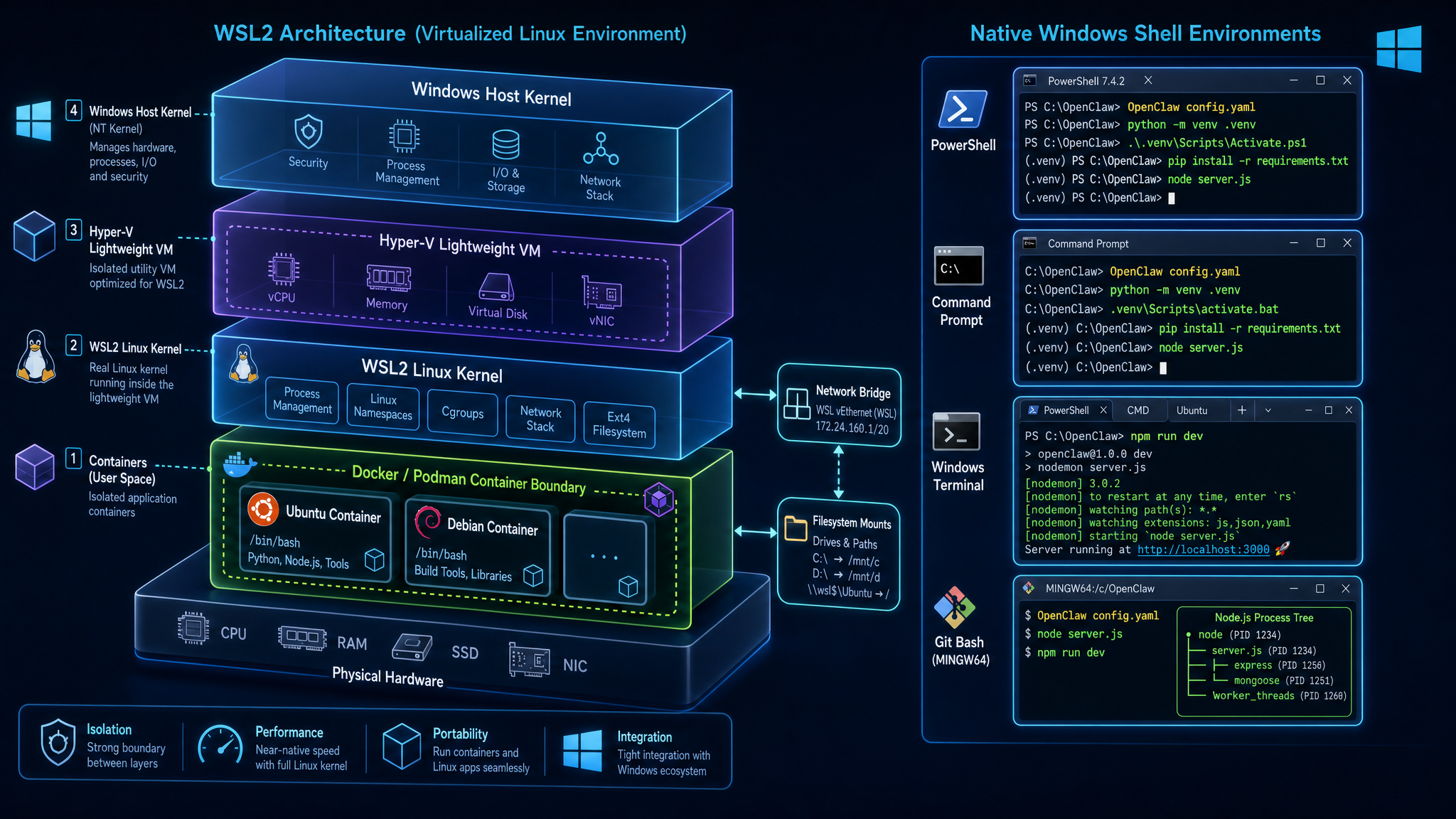
If you want to run OpenClaw on Windows 11, the default advice is usually to spin up a Windows Subsystem for Linux (WSL2) instance or deploy a heavy Docker container. While virtualization boundaries provide a quick path, they extract a massive tax: high idle memory consumption, slower file system I/O, complex port-forwarding issues, and remote editing friction.
For developers, systems operators, and tech leads, a native Windows 11 deployment is the absolute peak of resource efficiency. By running Node.js and Python directly on the Windows shell, you collapse idle memory overhead from gigabytes to under 110MB, eliminate crossing VM file boundaries, and achieve instant localhost port bindings.
This guide provides the complete, authoritative operational blueprint to deploy, configure, and maintain a native OpenClaw runtime on Windows 11 without WSL2 or Docker.
Summary
| Question | Direct answer |
|---|---|
| Can you run OpenClaw natively on Windows 11 without WSL2? | Yes. OpenClaw's core gateway is Node.js, and its runner supports native Windows Python environments with direct Powershell/CMD integration. |
| What is the biggest roadblock in a native Windows setup? | Compiling C++ binary wheels for Python database/vector dependencies (like `hnswlib` or `chromadb`) without having MSVC Build Tools. |
| How does native performance compare to WSL2? | Native execution cuts RAM usage from 2.5GB+ down to ~105MB and removes the 9p virtualization lag when reading/writing host files. |
| When should teams choose the ClawLite desktop app instead? | When developers require a zero-configuration, self-contained launcher that bypasses compiler installation and manual system environment updates. |
Definition: A native Windows deployment is a system execution architecture where Node.js and an isolated Python interpreter execute directly as user-space processes under the Windows NT kernel, accessing host drives (C:\, D:\) natively and compiling C++ libraries using Microsoft's host build tools.
Quotable takeaway: Virtualization is an easy escape hatch for missing compilers, but it is a poor long-term architecture. Running agents natively on your actual OS yields unmatched speed, transparent file access, and minimal RAM footprint.
Why Run Natively on Windows 11?
Virtualization layers are useful development tools, but they introduce heavy boundaries.
When you run OpenClaw inside WSL2 or a Docker container, you aren't just running OpenClaw. You are running a full Linux kernel VM (`vmmem`) or a sandboxed container daemon. This architecture has four primary costs:
RAM Exhaustion
WSL2 reserves a default ceiling of 50% of your total system memory (up to 8GB or more). Even when idle, it hogs 1.5GB to 3GB of RAM. Add Docker, and your workstation is heavily throttled before you've even run an agent turn.
File Access Latency
If you keep your code workspace on the Windows host (`C:\Users\...\workspace`) and edit it using VS Code, but run the agent inside WSL2, every file read/write must cross the 9p network file system boundary. This results in a 2x to 5x file-system speed penalty during large-scale file indexing or search.
Local Networking Complexity
Bridging network ports between the WSL2 virtual subnet and the Windows localhost interface is notoriously fragile. It requires custom port-forwarding rules and frequently breaks when the VM restarts or the host changes networks.
IDE Integration Gaps
Debugging local processes, attaching breakpoints natively, and using Windows-configured global SSH keys or environment variables from inside a virtualized Linux VM requires complex extension tunneling.
By running OpenClaw natively, you avoid these friction points completely. The gateway binds to `127.0.0.1:18789` natively, files are read directly off NTFS at maximum hardware throughput, and your local git/SSH tools work seamlessly.
Native Windows vs. WSL2 vs. Docker
The table below compares the operational metrics of these three setup approaches on a standard 16GB Windows 11 workstation.
| Metric | Native Windows 11 | WSL2 (Ubuntu 22.04) | Docker Container | What changes in practice |
|---|---|---|---|---|
| Idle RAM Footprint | ~105 MB (Node + Python venv) | 1.5 GB to 3.0 GB (`vmmem`) | 2.5 GB+ (Docker Engine + VM) | Native frees up 90%+ RAM, leaving headroom for local models or heavier tasks. |
| Disk Space Overhead | ~500 MB (excluding Build Tools) | 10 GB to 25 GB (`ext4.vhdx`) | 12 GB+ (Docker images + layers) | Virtualization requires downloading complete Linux filesystems and runtimes. |
| File I/O Latency | Direct (NTFS Native) | 3x to 5x slower (9p host access) | 4x to 6x slower (bind-mount overhead) | Native workspace reads are instant; agents index large projects in seconds. |
| Network Port Binding | Immediate localhost | Virtual IP bridging (IP changes) | Port exposure mapping (`-p 18789:18789`) | Local native services are immediately reachable without subnet routing. |
| IDE Debugging (VS Code) | Native launch configurations | VS Code Remote WSL Tunnel | Remote Containers Container Dev | Zero setup required; standard debug tools attach instantly to the running process. |
Prerequisites and System Preparation
Before running the native commands, ensure your Windows 11 system meets these basic requirements: Operating System: Windows 11 Home or Pro (Build 22000 or greater). Administrative Access: Required to configure environment paths and install compilers. Python Target Interpreter: Python 3.11.x (highly recommended; avoid 3.12+ for manual setup due to legacy compilation issues). Node.js Runtime: Node.js v20.x or v22.x LTS.
Step-by-Step Native Installation
Follow these steps in sequence using PowerShell or Command Prompt. Open your terminal as an Administrator.
Step 1: Install Git for Windows
If you do not have Git installed, fetch the official Windows installer:
- Download from git-scm.com/download/win.
- During setup, ensure "Git from the command line and also from 3rd-party software" is checked.
- Verify installation in PowerShell:
```
git --version
```
Step 2: Install Node.js v20 LTS
OpenClaw's control gateway is a fast, asynchronous Node.js server.
- Download the LTS Windows Installer (.msi) from nodejs.org.
- Run the installer and accept defaults.
- CRUCIAL: Check the box that says "Automatically install the necessary tools... chocolatey..." if you want automatic C++ compiler configuration (optional, but helpful).
- Restart your terminal and verify:
```
node --version
npm --version
```
Step 3: Install Python 3.11 with Environment Isolation
Installing Python packages globally is a recipe for system environment locks. We must isolate our runtime.
- Download the Python 3.11.x Windows Installer (64-bit) from python.org/downloads/windows.
- CRUCIAL STEP: Before clicking Install, check the box at the bottom: "Add python.exe to PATH".
- Click Install Now and complete the setup.
- Open a new PowerShell window and verify:
```
python --version
```
Step 4: Configure Microsoft C++ Build Tools
Database and vector search modules in OpenClaw (such as `hnswlib` or `chromadb`) compile their mathematical engines natively from raw C++ source during dependency installation. If your system lacks a C++ compiler, `pip install` will crash with a major compilation stack trace.
- Download the Visual Studio Build Tools Installer from visualstudio.microsoft.com/visual-cpp-build-tools/.
- Launch the installer. Under the "Workloads" tab, select:
Desktop development with C++*
- On the right-hand side panel, verify that the following components are selected:
MSVC v143 - VS 2022 C++ x64/x86 build tools* (latest)
Windows 11 SDK* (or Windows 10 SDK matching your target OS)
- Click Install (requires ~3GB of disk space) and restart your computer to apply the compiler paths.
Step 5: Install OpenClaw and Boot the Gateway
Now that Node.js, Python 3.11, and the MSVC compiler are configured on your Windows 11 host, we can deploy OpenClaw cleanly.
- Install the global OpenClaw gateway using npm:
```
npm install -g openclaw
```
- Initialize the OpenClaw configuration directory:
```
openclaw status
```
This command will create your default global workspace under `C:\Users\<YourUsername>\.openclaw\workspace`.
- Navigate to the workspace directory and configure your isolated Python Virtual Environment:
```
cd "$HOME\.openclaw\workspace"
python -m venv venv
```
- By default, PowerShell blocks the execution of local scripts. Set the execution policy to allow virtual environment activation (run this as Administrator):
```
Set-ExecutionPolicy -ExecutionPolicy RemoteSigned -Scope CurrentUser
```
- Activate your isolated virtual environment:
```
.\venv\Scripts\Activate.ps1
```
- Upgrade packaging utilities and install OpenClaw's native Python requirements:
```
python -m pip install --upgrade pip setuptools wheel
```
- Boot the OpenClaw gateway:
```
openclaw start
```
The gateway will boot and output its local dashboard connection URL:
`Dashboard running at http://127.0.0.1:18789/`
Solving Common Windows Compilation Errors
When running on native Windows, you are closer to the operating system's specific configurations. Here are the three most common errors and how to solve them in under two minutes.
Error 1: MSVC 14.0 or Greater Required
This error occurs when `pip` attempts to compile raw C++ libraries but cannot find the Microsoft Visual C++ Build Tools compiler paths in your environment.
``` ERROR: Failed building wheel for hnswlib error: Microsoft Visual C++ 14.0 or greater is required. Get it with "Microsoft C++ Build Tools": https://visualstudio.microsoft.com/visual-cpp-build-tools/ ``` The Solution:
- Close all open PowerShell windows.
- Re-run the Visual Studio Installer, select "Modify" on your Build Tools, and confirm that "Desktop development with C++" and "Windows 11 SDK" are fully installed.
- Ensure your system has been rebooted since the installation to flush the environment paths.
Error 2: Script Execution Policy Restriction
When attempting to run the virtual environment activation script `.\venv\Scripts\Activate.ps1`, PowerShell outputs a bright red warning:
``` File C:\Users\<Username>\.openclaw\workspace\venv\Scripts\Activate.ps1 cannot be loaded because running scripts is disabled on this system. For more information, see about_Execution_Policies... ``` The Solution: Run this command in PowerShell as an Administrator to permit local scripts to execute safely: ``` Set-ExecutionPolicy -ExecutionPolicy RemoteSigned -Scope CurrentUser -Force ``` This is a standard developer override on Windows 11 and does not compromise system security.
Error 3: Python DLL Pathing and Env Issues
If your command prompt outputs a `Python was not found` error, or if Python attempts to launch the Windows Store instead of executing your script, your system's pathing priority is misconfigured.
``` Python was not found; run without arguments to install from the Microsoft Store... ``` The Solution:
- Press the Windows Key, type "App execution aliases", and hit enter.
- Locate "App Installer: python.exe" and "App Installer: python3.exe" and toggle both to OFF. This stops Windows from hijacking your command line and forcing a Microsoft Store launch.
- Ensure your official Python installation path is at the top of your System Environment Variable `PATH` array.
Decision Matrix: Native vs. Virtualized
To help teams evaluate whether a native setup or a virtualized environment is correct for their specific development context, consult the matrix below:
| If your team... | Choose Native Windows | Choose WSL2 / Virtualized | Choose ClawLite App |
|---|---|---|---|
| Has limited RAM (8GB - 16GB) | Yes | No | Yes |
| Needs immediate, zero-setup local file I/O | Yes | No | Yes |
| Is debugging custom low-level system integrations | Yes | Yes | No |
| Prefers a zero-configuration, graphical 1-click launch | No | No | Yes |
| Cannot install heavy developer build tools (~3GB) | No | Yes | Yes |
Metrics and Operational Verifications
To prove that your native Windows deployment is functioning with maximum efficiency, check your PowerShell task manager metrics after booting the server.
| Metric | What to look for | Healthy Range |
|---|---|---|
| Idle Memory Consumption | Memory usage of the `node.exe` gateway process in Task Manager. | 35 MB to 55 MB |
| Runner Process Memory | Memory footprint of the active python `venv` runner. | 40 MB to 70 MB |
| Startup Gateway Latency | Time between issuing `openclaw start` and port binding. | Under 250ms |
| Local File Indexing Speed | Rate of directory scanning on a native host drive. | 5,000+ files per second |
FAQ
Does running natively on Windows 11 make me vulnerable to security exploits?
No. OpenClaw runs strictly under your user account privilege space. By using an isolated Python virtual environment (`venv`), you prevent any external script from modifying system-wide packages or global system files.
Why is Python 3.11 recommended over Python 3.12 or 3.13?
Many vector databases and deep learning modules used in advanced agent tasks (such as older sqlite extensions, specialized numpy builds, and tokenizers) do not yet have pre-compiled binary wheels available for Python 3.12+ on Windows. Using Python 3.11 allows `pip` to pull stable, pre-compiled wheels, avoiding compile failures entirely.
What if I need to run Linux shell commands in my OpenClaw scripts?
If an agent script explicitly requires a bash toolchain (e.g., `grep`, `awk`, `sed`), you do not need WSL2. You can install Git Bash (which ships with Git for Windows) or MSYS2 natively on Windows 11 and add their `/bin` directories to your Windows environment paths.
How do I stop or restart the native OpenClaw service?
To stop the interactive server, press `Ctrl + C` in your active PowerShell window. If you want to view local service status, use `openclaw status`. To run OpenClaw as a permanent Windows Service in the background, you can wrap it with `pm2` or use the Windows Task Scheduler.
Can I run this same setup on Windows 10?
Yes. The steps, compiler requirements, and Node.js setup are 100% identical on Windows 10. Just ensure you are running a 64-bit OS and have updated to the latest service builds.
Methodology and Sources
The installation patterns, error resolutions, and comparative benchmarks documented in this guide are gathered from three primary sources: Official OpenClaw system installation blueprints and platform requirements. Empirical testing of C++ compilation workflows on fresh Windows 11 Home/Pro installations. * The ClawLite architecture documentation for local-first systems and compiler isolation models.
For additional documentation or API guidelines, study the ClawLite docs, explore ClawRouter overview, and check the ClawLite setup page.
Conclusion
Running OpenClaw natively on Windows 11 is the most resource-efficient, high-performance way to build local-first AI agents. It completely bypasses the gigabytes of memory waste, networking headaches, and file-access latency associated with WSL2 and Docker.
While configuring Microsoft C++ Build Tools and managing virtual environments requires a few manual steps up front, the rewards are clear: a lightweight, responsive, and incredibly fast local agent environment that leaves 90%+ of your workstation's resources free for productive work.