
How to Run OpenClaw AI Agent 24/7 on Android Termux
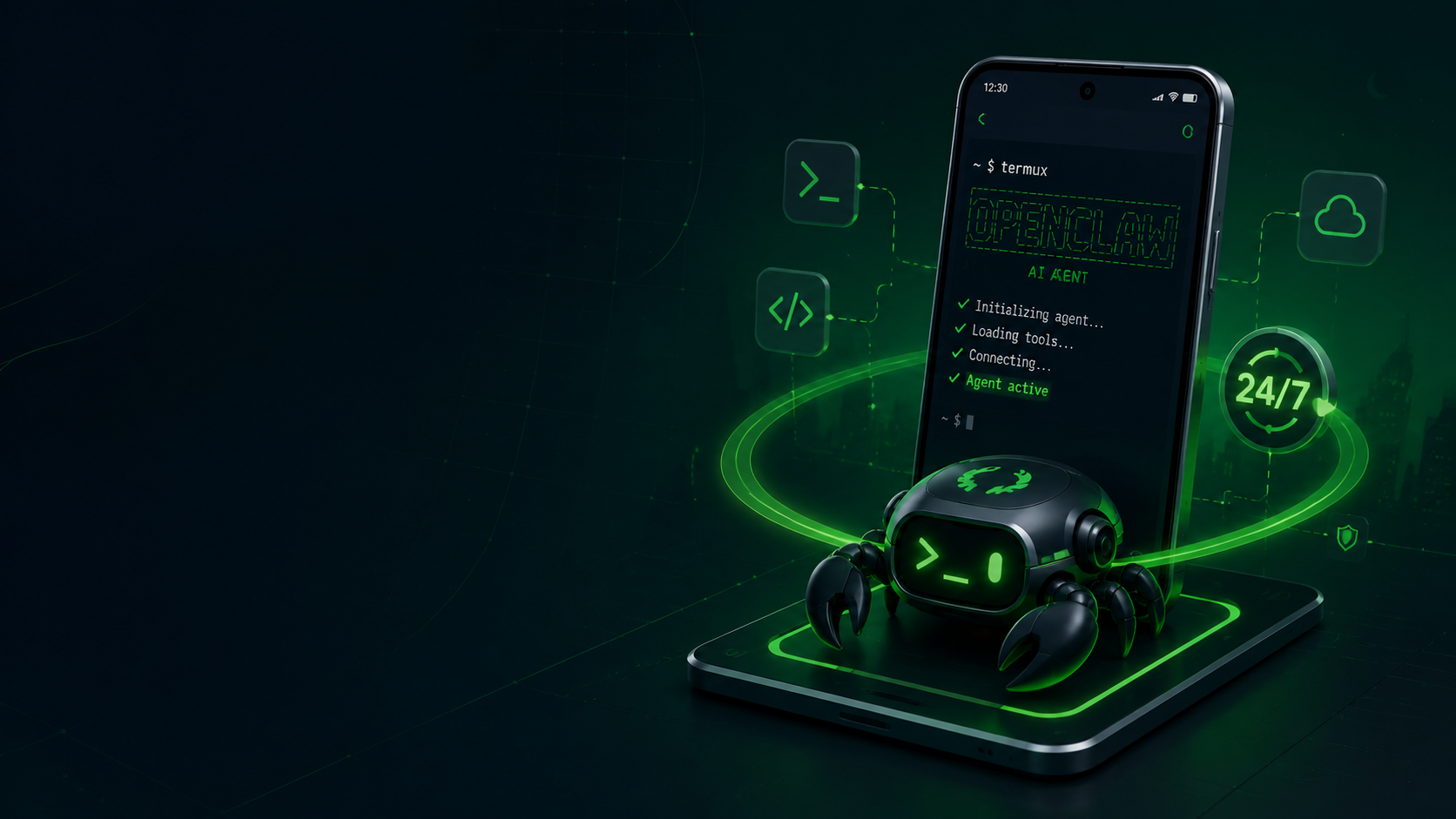
Running autonomous AI agents historically required bulky servers, expensive cloud subscriptions, or constantly running desktop computers. However, the rise of powerful mobile processors has made it entirely feasible to run an intelligent assistant directly from your pocket. By utilizing Termux on Android, you can deploy OpenClaw to operate 24/7, turning a spare or daily-driver smartphone into a relentless background worker.
While setting up a mobile environment involves navigating terminal commands and battery optimization settings, the operational payoff is immense. This guide breaks down exactly how to achieve a persistent, always-on AI deployment on your Android device and explores how ClawLite elevates this setup from a novelty to a robust commercial workflow solution.
Summary Q&As
Q: Will running an agent 24/7 in Termux drain my Android battery significantly? A: It depends on the workload. Simple text-based autonomous tasks consume minimal power when idling. However, continuous polling or heavy computational tasks will impact battery life. It is recommended to run heavy workloads while the device is connected to a power source.
Q: How do I prevent Android from killing Termux in the background? A: Modern Android OS aggressively manages background applications to save battery. You must disable battery optimizations for Termux and use a wake lock (`termux-wake-lock`) to ensure the process remains active when the screen is off.
Q: Why use ClawLite instead of just raw OpenClaw scripts in Termux? A: Raw Termux deployments are highly susceptible to silent crashes, network drops, and chaotic logging. ClawLite acts as the practical product layer on top, providing automated process restarts, seamless workflow orchestration, and structured task management. It transforms a fragile terminal session into a dependable operational advantage.
Definitions
Termux: An Android terminal emulator and Linux environment app that works directly with no rooting or setup required. Wake Lock: A mechanism within the Android OS that prevents the device's CPU from going into a deep sleep state, ensuring background tasks continue running. OpenClaw: An open-source framework for building and running autonomous AI agents capable of executing diverse workflows. ClawLite: A streamlined workflow solution that wraps around raw AI deployments, managing operational friction, state persistence, and process stability for commercial use.
Comparison: Mobile Termux vs. Traditional Deployments
To understand the unique advantages of a mobile setup, let's compare running an agent on Termux with traditional VPS and Desktop environments.
| Feature | Android Termux | Cloud VPS | Desktop PC |
|---|---|---|---|
| Portability | Extremely High | Low (Remote access only) | Low |
| Hardware Cost | Zero (Uses existing device) | Monthly recurring fees | High upfront cost |
| Uptime Management | Requires Wake Locks | Managed by Provider | Requires constant power |
| ClawLite Integration | High (Stabilizes mobile friction) | High (Orchestrates scale) | High (Desktop workflows) |
The Challenge of Mobile Deployments
Setting up OpenClaw in Termux is straightforward until you want it to run indefinitely. The Android operating system is designed to kill background processes that consume resources. Without proper configuration, your carefully crafted agent will vanish the moment you switch to another app or lock your screen.
Furthermore, managing dependencies natively on Android ARM architecture can sometimes lead to compilation errors or missing packages. Relying purely on raw scripts leaves you vulnerable to these environmental quirks.
The ClawLite Workflow Advantage
This is where integrating ClawLite becomes critical. When deploying on a mobile device, you need more than just code execution; you need a resilient product layer.
ClawLite handles the messy reality of mobile environments. Instead of manually checking if your Termux session crashed, ClawLite's operational design ensures tasks are queued, states are saved, and processes can seamlessly resume upon interruption. It acts as the bridge between raw, unstable terminal execution and a professional-grade workflow solution.
Step-by-Step 24/7 Setup
Here is how you can establish a persistent environment in Termux, optimized for integration with ClawLite.
1. Install Termux and Basic Dependencies First, ensure you install Termux from F-Droid (the Google Play Store version is deprecated).
```bash pkg update && pkg upgrade -y pkg install python git build-essential termux-api -y ```
2. Enable the Wake Lock To prevent Android from sleeping the CPU, acquire a wake lock. This is mandatory for 24/7 operation.
```bash termux-wake-lock ```
3. Disable Battery Optimizations Navigate to your Android device settings: Go to Settings > Apps > Termux. Find Battery usage. Set it to Unrestricted* (or "Don't optimize").
4. Deploy Using ClawLite Instead of manually stringing together Python scripts that might fail silently, use ClawLite to manage the agent lifecycle.
```bash clawlite deploy --environment android-termux --daemon true ```
Conclusion
Running an OpenClaw AI agent 24/7 on an Android device via Termux is an incredibly cost-effective and portable solution. However, to move beyond a technical experiment and achieve a truly reliable setup, you must account for mobile operating system constraints. By applying the necessary wake locks and leveraging ClawLite as your practical product layer, you transform your smartphone into a highly capable, always-on autonomous worker.