
How to Install OpenClaw Cleanly on macOS Using Homebrew
Meta Description: Learn the cleanest way to prepare macOS with Homebrew for OpenClaw, then use ClawLite to guide gateway install, API configuration, channel setup, and day-to-day control.
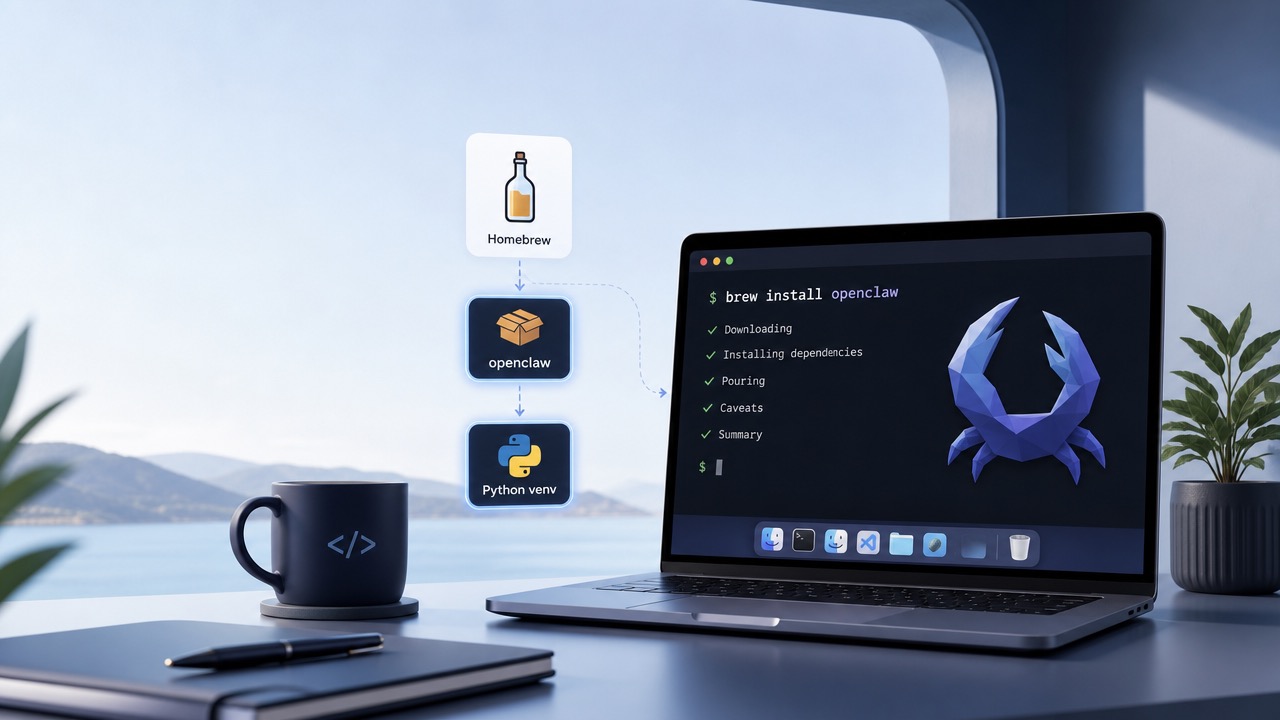
If you want a clean OpenClaw setup on macOS, Homebrew is still the right starting point — but not for the reason many guides imply. Homebrew is best used to prepare a reliable local runtime on your Mac, while the current OpenClaw quick-start flow uses the official installer or npm-based install path. After that, ClawLite fits in as the guided layer around gateway setup, API configuration, channel selection, and ongoing control.
This guide shows the practical split:
- use Homebrew to prepare a sane macOS environment
- install OpenClaw with the current supported flow
- run onboarding so the gateway is configured correctly
- use ClawLite as the setup-and-control layer around that gateway
What Homebrew Is Actually Doing Here
Homebrew is the cleanest way to install and maintain the system dependencies that make OpenClaw setup predictable on macOS.
| Task | Best Tool | Why |
|---|---|---|
| Install Node.js | Homebrew | Clean versioned runtime on macOS |
| Install Git and helpers | Homebrew | Keeps core CLI dependencies easy to manage |
| Install OpenClaw itself | Official installer or npm | Matches current OpenClaw docs |
| Configure the gateway | OpenClaw onboarding + ClawLite | This is where the real setup happens |
That distinction matters. If you frame ClawLite as a generic publishing or workflow platform, you miss what the product is actually centered on today: helping users get OpenClaw installed, configured, and controllable without setup chaos.
Step 1: Install Homebrew
If Homebrew is not already on your Mac, install it first:
```bash /bin/bash -c "$(curl -fsSL https://raw.githubusercontent.com/Homebrew/install/HEAD/install.sh)" ```
Then follow the PATH instructions Homebrew prints at the end so `brew` works in a fresh terminal.
Step 2: Use Homebrew to Install Node and Core Dependencies
OpenClaw’s current getting-started docs expect a working Node runtime. On macOS, Homebrew is a clean way to provide that.
```bash brew install node git ```
Verify the result:
```bash node --version npm --version git --version ```
If you are on Apple Silicon, Homebrew under `/opt/homebrew` also helps you avoid the mixed-architecture mess that causes many local setup failures.
Step 3: Install OpenClaw with the Current Supported Flow
Once Node is ready, install OpenClaw using the supported path from the official docs.
Option A: Official install script
```bash curl -fsSL https://openclaw.ai/install.sh | bash ```
Option B: npm global install
```bash npm install -g openclaw@latest ```
If you prefer a conservative setup, open a fresh terminal after installation and confirm the CLI is available:
```bash openclaw --help ```
Step 4: Run Onboarding and Install the Gateway Service
This is the step many low-quality setup articles skip, but it is the step that actually turns a binary install into a usable system.
```bash openclaw onboard --install-daemon ```
During onboarding, OpenClaw walks you through:
- choosing a model provider
- entering API credentials
- configuring the gateway
- preparing the Control UI and first chat flow
After onboarding, verify the gateway:
```bash openclaw gateway status ```
Then open the dashboard:
```bash openclaw dashboard ```
Step 5: Where ClawLite Actually Fits
This is where the positioning needs to be accurate.
ClawLite is not a standalone agent IDE or a generic publishing platform. As shown in its companion app (v1.5.323), ClawLite is a native desktop installer, control panel, and management hub for the OpenClaw Gateway. It guides users visually through a 7-step timeline (`Start` -> `Env` -> `Install` -> `Activate` -> `Model` -> `Channel` -> `Done`), configures their API tokens and channels, and manages the local background daemon.
In plain terms, the ClawLite desktop app provides:
- Gateway Control Plane: A live status indicator with a green light (`Gateway Running`) and buttons to `Stop` or `Restart` the local background gateway daemon in one click.
- Web Chat Integration: A direct, single-click launcher to open your local OpenClaw dashboard and Web Chat Control UI in your browser.
- Automation Toggles: "Launch on startup" toggle with a quick toggle switch to keep your local runtime active.
- Log Access: Quick "Show Log" and "Download Log" controls to view the gateway execution history instantly.
- Troubleshoot & Diagnostic Tooling: A dedicated `Troubleshoot` button to inspect local environment and dependency paths.
- SOUL Backup & Restore: One-click visual utilities to preserve your configurations and perform safe rollbacks without file corruption.
- Full Cleanup Utility: A red-coded `Delete` option (with trash icon) to completely uninstall the gateway and wipe local files cleanly.
That makes it a strong companion to a clean Homebrew-based macOS environment. Homebrew gives you a clean local machine. OpenClaw gives you the agent runtime and gateway. ClawLite helps you install, manage, and control that gateway with less friction.
Why This Homebrew + ClawLite Combination Works
The cleanest mental model is this:
- Homebrew keeps the Mac environment sane.
- OpenClaw provides the raw runtime and gateway engine.
- ClawLite acts as the visual companion app (Installer & Control Panel) to guide the installation, manage the background service, configure options, handle backups, and launch the Web Chat.
That is a much more accurate description than saying ClawLite primarily exists to publish content or run generic operations around your agent.
If your setup goal is “get OpenClaw working on macOS without wasting a day on broken dependencies, missing config, and gateway confusion,” this stack is a sensible path.
Common Mistakes to Avoid
Treating Homebrew as the whole install story
Homebrew is part of the foundation, not the entire OpenClaw installation flow.
Skipping onboarding
A successful package install does not mean your gateway is configured correctly. `openclaw onboard --install-daemon` is a core part of the real setup.
Misunderstanding ClawLite
ClawLite should be described as a guided setup companion, installer, and gateway control panel for the installed system — not as a vague all-purpose publishing platform or a standalone chat IDE.
Frequently Asked Questions
Do I install OpenClaw directly with Homebrew?
Not typically. Homebrew is most useful for installing the underlying macOS dependencies, especially Node.js and Git. The current OpenClaw quick-start docs point users to the official installer or npm install flow for the CLI itself.
Why use Homebrew at all if OpenClaw has its own installer?
Because Homebrew keeps your macOS toolchain predictable. Even when OpenClaw is installed through its own script or npm, a clean Homebrew-managed Node environment makes setup and later troubleshooting much easier.
What does ClawLite actually help with?
ClawLite helps with the install and control journey around OpenClaw: guided timeline-based setup (v1.5.323), API token configuration, channel selection, gateway verification, background process management (Restart/Stop), log downloads, troubleshooting, and config-oriented safety features like SOUL Backup and Restore.
Conclusion
A clean macOS OpenClaw setup is not just about getting one command to succeed. It is about ending up with a working, controllable gateway.
Use Homebrew to prepare macOS cleanly. Install OpenClaw with the supported flow. Run onboarding so the gateway is actually configured. Then use ClawLite for what it is clearly positioned to do: guide you through the 7-step setup timeline, control the background gateway service, view logs, and handle backups and troubleshooting safely.
If you want the shortest path to a usable result, that is the right framing.
Sources:
- OpenClaw documentation: Quick Start / Getting Started
- OpenClaw documentation: Install and onboarding guidance
- ClawLite homepage messaging, reviewed June 2026