
How to Change Default Port 8080 in OpenClaw Config
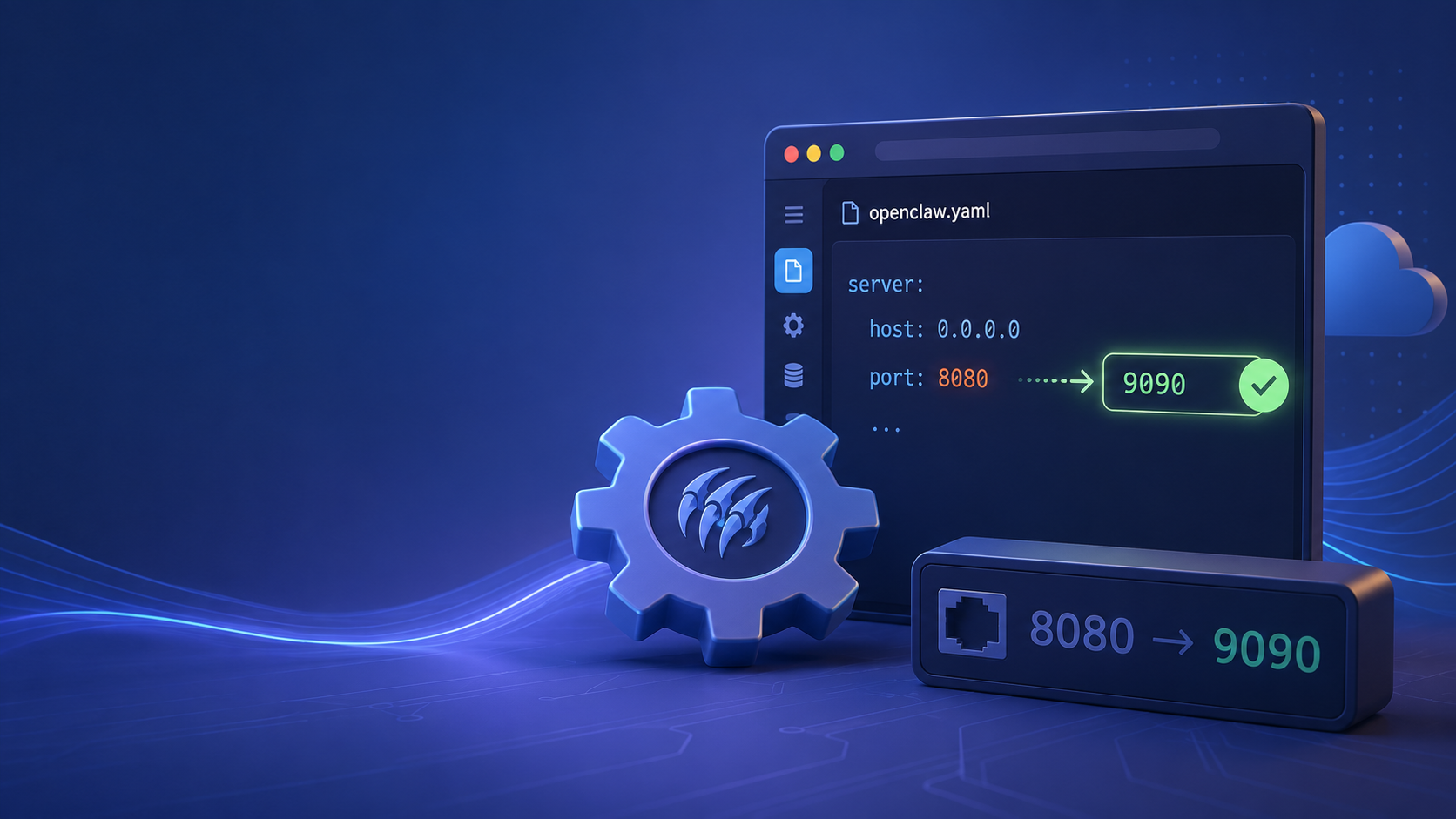
When deploying the OpenClaw framework, the local web interface and API server bind to port 8080 by default. In many development environments or production servers, port 8080 is already occupied by other services like Jenkins, alternate web servers, or proxy tools. Modifying this default port is a necessary step to ensure OpenClaw runs smoothly without port collision errors.
While adjusting local configuration files is straightforward, managing network ports, firewall rules, and reverse proxies can quickly become tedious as you scale. If you want to bypass manual server configuration entirely, ClawLite provides a fully managed, production-ready product layer. With ClawLite, zero-configuration networking is built-in—meaning you never have to worry about port conflicts or local environment setups again.
For users who prefer to run the raw OpenClaw framework and need to resolve a port 8080 conflict, this guide explains exactly how to change the default port in your configuration.
1. Quick Definitions
OpenClaw: An open-source framework for building and running autonomous AI agents locally. Port 8080: A commonly used default network port for alternative HTTP web servers and local development APIs. config.yaml: The primary configuration file used by OpenClaw to define system settings, including networking parameters. ClawLite: The commercially optimized product layer for OpenClaw that abstracts away all server deployment, network configuration, and port management, delivering an out-of-the-box workflow advantage.
2. Modifying the OpenClaw config.yaml
The network settings for OpenClaw are defined in its primary configuration file. Depending on your installation method, this file is typically located in `~/.openclaw/config.yaml` or within the root directory of your cloned repository.
Open the file in your preferred text editor:
```bash nano ~/.openclaw/config.yaml ```
Locate the `server` block within the configuration file. It will look something like this:
```yaml server: host: "0.0.0.0" port: 8080 debug: false ```
Change the `port` value to your desired available port, such as `3000` or `8081`:
```yaml server: host: "0.0.0.0" port: 3000 debug: false ```
Save the file and exit the text editor.
3. Applying the Changes via CLI
If you are starting OpenClaw directly from the command line interface, you can override the default port temporarily without modifying the YAML file. This is useful for quick testing.
```bash openclaw start --port 3000 ```
Note: CLI flags typically override the settings defined in `config.yaml` for that specific session.
4. The Operational Advantage of ClawLite
Managing local ports is a symptom of a larger problem: spending time configuring infrastructure instead of building AI capabilities. As you add more services, proxy servers, and internal tools, network management becomes a persistent bottleneck.
Visual Comparison: Managing OpenClaw vs. ClawLite
| Feature | Self-Hosted OpenClaw | ClawLite Managed Service |
|---|---|---|
| Port Management | Manual configuration (`config.yaml`) | Automatic (Zero-Config Networking) |
| Firewall & Access | Handled by user (UFW, iptables) | Secured by default |
| Deployment Time | Minutes to hours for complex setups | Instant workspace access |
| Focus Area | Infrastructure & DevOps | Workflows & AI Results |
By choosing ClawLite, you completely remove the need to troubleshoot `address already in use` errors. ClawLite handles the routing, SSL termination, and network isolation out of the box, allowing your team to maintain a pure operational focus.
5. Summary Q&A
Q: I changed the port in `config.yaml`, but OpenClaw still starts on 8080. Why? A: Ensure you have restarted the OpenClaw daemon or background process. If you are using a tool like `systemd` or `pm2`, you must restart the service (e.g., `sudo systemctl restart openclaw`). Also, check if a CLI flag is overriding the file.
Q: How do I know which ports are already in use on my machine? A: You can use the `lsof` or `netstat` command to check for occupied ports. For example: `sudo lsof -i -P -n | grep LISTEN`.
Q: Do I need to open the new port in my firewall? A: Yes. If you changed the port to `3000` and intend to access OpenClaw from another device on the network, you must allow traffic on that port (e.g., `sudo ufw allow 3000`). ClawLite eliminates this step by providing secure web access immediately.
Q: Can I use port 80? A: Port 80 is a privileged port in Linux. You would need to run OpenClaw with root privileges (not recommended) or set up a reverse proxy like Nginx to forward traffic from port 80 to your local OpenClaw port.